1. Before you start
You need to be an admin in your Stalar workspace and have permission to install apps in HubSpot. One CRM can be connected per workspace.
2. Connect
- In Stalar, open Settings > CRM and click Connect, then choose HubSpot. You can also click Install on the Stalar listing in the HubSpot App Marketplace.
- Sign in to HubSpot and pick the account to connect.
- Review the permissions Stalar asks for and click Connect app.
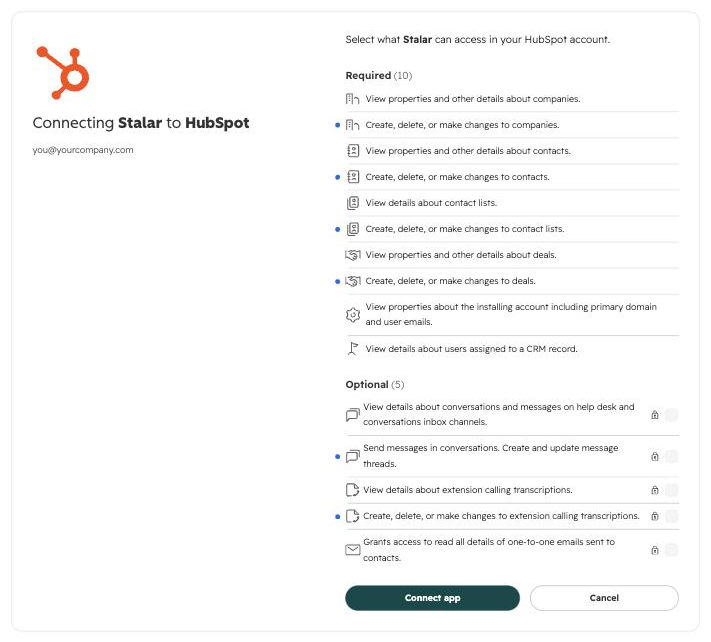
- Stalar reads your companies, contacts, deals, pipelines and owners. The first sync takes a few minutes.
3. Permissions
- Companies, contacts and deals (read and write): to show what is already in HubSpot and to create or update the records you push.
- Lists (read and write): to read your lists and add pushed records to them.
- Owners (read): to map teammates to HubSpot owners.
- Optional: sales email, call transcripts and conversations, to show and log that activity. You can leave these out.
4. Configure
On Settings > CRM:
- What syncs: pause reading contacts or deals, or stop writing deal changes to HubSpot.
- Automations: choose which emails, tasks, meetings and calls are logged in HubSpot.
- Owners and stages: map each teammate to a HubSpot owner and each deal stage to a HubSpot stage.
5. Use it
- Automatic: HubSpot is read twice a day, logged activity is written as it happens, and deal changes are written back.
- Manual: click Push to HubSpot on an account or a list, or Sync now on Settings > CRM.
Companies are matched by domain and contacts by email, so pushing a record updates the existing one instead of creating a duplicate.
6. Disconnect
On Settings > CRM, click Disconnect. Stalar stops syncing in both directions, revokes its access and uninstalls itself from your HubSpot account.
7. Uninstall from HubSpot
In HubSpot, go to Settings > Integrations > Connected apps, find Stalar and choose Uninstall. Stalar loses access and stops syncing.
8. Your data
Records and activity already written to HubSpot stay in HubSpot. HubSpot data that Stalar copied stays in your Stalar workspace until you ask us to delete it at hello@stalar.ai. See the privacy policy.